
A high-performing webinar follows one repeatable arc: Plan with a single goal, Produce with production-grade discipline, and Convert by treating every session as a master asset. Copy this quick-start checklist and you can begin today.
- Lock your primary goal, target audience, and topic before touching any platform.
- Choose a platform built for your scale: Zoom for enterprise reach, LiveWebinar for interactive flexibility, or Riverside for broadcast-quality recording and repurposing.
- Open registration at least 14 days out, run one full dress rehearsal, and schedule your follow-up emails before the event goes live.
Pro Tip: Set your follow-up email sequence in your marketing automation tool the day you open registration. If you wait until after the event, you will lose the first critical two hours of post-webinar momentum.
Key Takeaways
A successful webinar requires a single clear goal, production-grade preparation, a structured promotion cadence, and a repurposing plan built before the event goes live.
| Point | Details |
|---|---|
| Plan with one goal | Set a single primary goal and two to three KPIs before choosing a topic or platform. |
| Use the 3-3-3 cadence | Send promotion touches at three weeks, three days, and three hours before the event to maximize live attendance. |
| Prioritize audio over video | A USB condenser mic and a stable ethernet connection outperform camera upgrades for perceived production quality. |
| Add interactivity every 5–7 minutes | Polls, chat prompts, and demos prevent drop-off and correlate with higher post-event conversion. |
| Treat every session as a master asset | Plan clips, blog posts, and an on-demand page before the event so repurposing happens within 48 hours. |
Table of Contents
- What is a webinar, and when should you use one?
- How to build your planning framework before anything else
- Which platform and tech stack should you build on?
- How do you create slides, scripts, and prepare your presenters?
- What does a solid rehearsal and backup plan look like?
- How do you promote a webinar and convert sign-ups into attendees?
- Running the live event: your minute-by-minute run sheet
- What should you do after the webinar ends?
- What KPIs and benchmarks should expert hosts track?
- Your copy-paste planning timeline and day-of checklist
- How to prepare your audience before the event starts
- Technical requirements and troubleshooting for attendees
- Why accessibility makes your webinar reach further
- Data privacy and compliance for registrants and attendees
- Webinars build community when you treat them as a program, not an event
- Ready to host expert sessions on a platform built for community?
- Sources
What is a webinar, and when should you use one?
A webinar is a live, online presentation or workshop that connects a host and speakers with a remote audience in real time, typically through video, audio, slides, and interactive tools like polls and chat. The format sits between a recorded video and an in-person event: more personal than a YouTube tutorial, more scalable than a conference room.
Three contexts where a webinar is the right tactic:
- Demand generation: Educate a cold or warm audience on a problem your product or service solves, without a hard sell.
- Customer education: Onboard new customers, walk through features, or run a live Q&A that reduces support tickets.
- Thought leadership: Host a panel of experts to build credibility and grow your community around a shared topic.
Format-versus-objective quick reference:
| Format | Core objective |
|---|---|
| Educational presentation | Teach a concept or skill to a broad audience |
| Product demo | Convert warm leads by showing the product live |
| Expert panel | Build authority and generate discussion |
| Customer onboarding | Reduce churn by accelerating time-to-value |
| Evergreen on-demand | Generate leads passively after the live event |
When a webinar is the wrong tool: very short tactical how-tos (under 10 minutes) work better as screen-recorded videos. Internal team updates with no audience interaction belong in async tools. And if your goal is pure entertainment with no educational hook, a social live stream will outperform a gated webinar every time.
How to build your planning framework before anything else
Set one goal and three supporting KPIs
Every strong webinar starts with a single primary goal stated in one sentence: "Generate 50 qualified leads for our spring product launch." Supporting KPIs give you the measurement layer: registration count, live attendance rate, and CTA click-through rate. More than three KPIs and you will optimize for nothing.
Define your audience and pick a topic that solves a real problem
Your ideal attendee profile answers three questions: What role do they hold? What problem keeps them up at night? What outcome would make this hour worth their time? A topic that maps directly to that outcome converts registrants into attendees. Vague topics fill rooms with the wrong people. For guidance on defining your niche audience, specificity is the differentiator.
Choose the right format for your goal
- Educational: 45–60 minutes total, 25–35 minutes of teaching, remainder for Q&A.
- Demo: 30–45 minutes, product walkthrough with live questions woven in.
- Panel: 60 minutes, 3–4 speakers, moderator-led with structured audience Q&A.
- Onboarding: 30 minutes, step-by-step walkthrough, heavy on screen share.
- Evergreen on-demand: Record live, edit for clarity, gate behind a landing page.
Sample agenda for a 60-minute educational webinar
- Pre-start buffer (5 min): welcome music or holding slide, chat warm-up prompt.
- Host intro and housekeeping (5 min): who you are, what attendees will leave with, how to ask questions.
- Core teaching (30 min): three to four focused segments, one poll or chat prompt every 5–7 minutes.
- Live demo or case example (10 min): show, don't just tell.
- Q&A (10 min): moderator surfaces top questions, host answers.
- Close and CTA (5 min): one clear next step, replay link promise, thank-you.
Research confirms that a 45–60 minute runtime with roughly 25–35 minutes of teaching and the remainder for Q&A is the format that balances engagement with conversion in B2B webinars. Audio quality and backup recordings are the top production priorities, not camera resolution.
Which platform and tech stack should you build on?
Platform evaluation checklist
Before signing up for any platform, run it through these criteria:
- Interactive features: Does it support polls, live Q&A, hand-raisers, and breakout rooms natively?
- Recording and repurposing: Can you record locally, download separate speaker tracks, and export clips without a third-party tool?
- Integrations: Does it connect to your CRM (HubSpot, Salesforce), email platform (Mailchimp, ActiveCampaign), and calendar tools out of the box?
- Scale: What is the maximum attendee count at your price tier?
- Pricing signals: Does the cost scale by attendee count, host seats, or features? Know which lever drives your bill.
Platform orientation (not a ranking):
- Zoom Webinars suits large-scale enterprise events with familiar UX for attendees and deep calendar integrations.
- LiveWebinar offers strong interactive features including polls, whiteboard, and multi-streaming, making it a fit for educators and community builders who want flexibility.
- Riverside prioritizes studio-quality local recording and easy clip creation, which makes it the go-to for hosts who plan to repurpose heavily.
Minimum hardware and connection requirements
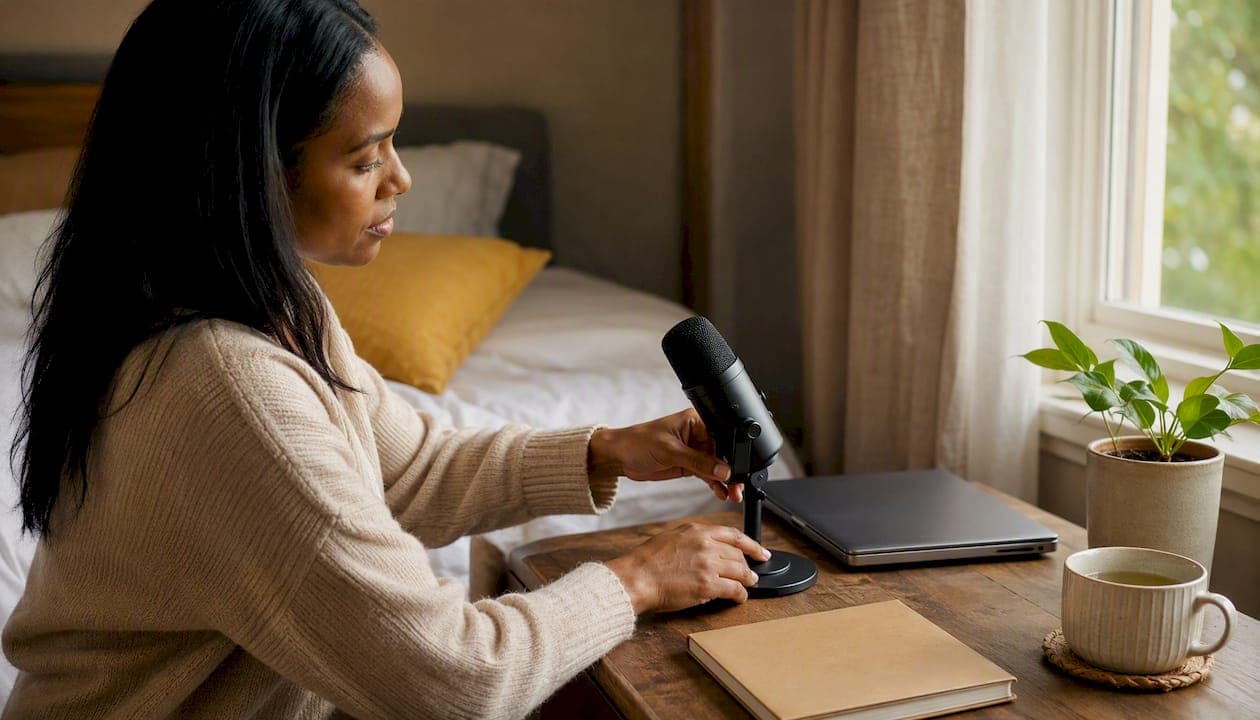
- Microphone: A USB condenser mic (Blue Yeti, Rode NT-USB) or an XLR mic with an audio interface. Built-in laptop mics introduce echo and background noise that erodes perceived credibility faster than any slide design flaw.
- Connection: Ethernet over Wi-Fi, always. Target a minimum 10 Mbps upload for a clean 1080p stream with screen share.
- Camera: A 1080p webcam or mirrorless camera with a clean HDMI output. Lighting matters more than sensor quality: a $30 ring light outperforms a $500 camera in a dark room.
- Backup device: A second laptop logged in as a co-host, ready to take over.
Integration notes
Connect your registration form directly to your CRM so every registrant is tagged by source, role, and attendance status. Route confirmed registrants into your email automation sequence immediately. After the event, sync attendance data back to the CRM so sales can prioritize follow-up by engagement level. This loop, registration → CRM → email automation → post-event sync, is what separates a one-off event from a repeatable demand generation program.
How do you create slides, scripts, and prepare your presenters?
Slide best practices
One idea per slide. Readable fonts at 28pt minimum. High-contrast text on backgrounds. Visuals that work on a 13-inch laptop screen, because most attendees are not on a 4K monitor. Keep your slide count to roughly one per minute of teaching time, and build in a few "breathing" slides with a single image or pull quote to give attendees a visual rest.
For visual identity consistency across your slides, emails, and landing page, align colors, fonts, and logo placement before you build the deck. Inconsistent branding signals low production value before the host says a word.
Speaker checklist
- Brief every speaker on the audience profile, the primary goal, and their specific segment timing.
- Require a camera check, audio check, and background review at least 48 hours before the event.
- Assign a host (on-air presence and pacing), a moderator (chat and Q&A management), and a producer (tech and run-of-show).
- Prepare cue cards or a teleprompter script for speakers who need pacing support.
- Rehearse transitions between speakers out loud: a fumbled handoff is one of the most common live-event credibility killers.
Run-of-show and CTA placement
A CTA dropped in the last 60 seconds, when attendees are already closing tabs, converts poorly.
Pro Tip: Write your CTA slide first. If you cannot state the next step in one sentence, your offer is not clear enough to present live.
Pre-event assets to produce
- Landing page copy with a value-focused headline and a single registration CTA.
- Confirmation email with calendar link, tech requirements, and a pre-event engagement prompt.
- Backup slides (a static PDF version in case screen share fails).
- Downloadable resource (checklist, template, or guide) to increase perceived value and give attendees a reason to stay through the close.
What does a solid rehearsal and backup plan look like?
Full-dress rehearsal checklist
- Run the complete session from open to close, including transitions, at least 48 hours before the event.
- Test every poll, every slide transition, and every screen share on the actual platform account you will use live.
- Time each segment and flag any section running long.
- Simulate a speaker dropout: have the co-host take over mid-sentence and confirm the handoff is smooth.
- Record the rehearsal and review audio quality on playback before approving it.
Production playbooks consistently recommend role-based run-of-show documents and rehearsals as the primary defense against live-event failures. The host focuses on presence; the producer handles everything else.
Technical backup plan
- Pre-recorded fallback: Record a clean version of the core teaching segment in advance. If the live stream fails, the producer can play the recording while the host rejoins.
- Alternate internet: Have a mobile hotspot from a different carrier ready and tested.
- Co-host takeover: The co-host has host permissions from the start of the session, not just in an emergency. Waiting to promote them during a crisis costs minutes.
- Local recording: Every speaker records locally using Riverside or OBS as a backup to the platform's cloud recording. Audio quality and backup recordings matter more than any other production variable.
Role definitions
| Role | Primary responsibility | Failure-mode duty |
|---|---|---|
| Host | On-air delivery and pacing | Continue presenting; signal producer via chat |
| Moderator | Chat, Q&A triage, attendee questions | Surface urgent tech issues to producer |
| Producer | Run-of-show, tech, recording | Execute backup plan, promote co-host if needed |
| Support | Registration issues, pre-event comms | Handle attendee tech questions in chat |
How do you promote a webinar and convert sign-ups into attendees?
Promotion has two separate jobs: fill the room with registrations, and then get those registrants to show up live. Most teams focus only on the first job and wonder why attendance rates disappoint.
Promotion timeline
Open registration at least 14 days before the event and use the 3-3-3 cadence: three touches at three weeks out, three days out, and three hours before the event. Each touch serves a different purpose.
- Three weeks out: Announcement email to your segmented list, social posts, and partner amplification. Focus on the problem the webinar solves, not the logistics.
- Three days out: Reminder email with a clear value recap and a "what you will learn" bullet list. Add social proof if you have it (speaker credentials, past attendee count).
- Three hours out: Final nudge email with a one-click join link. Keep it short: two sentences and the link.
Segmented email sequences consistently outperform broad social or untargeted lists for webinar registrations. Email is the spine of your promotion; social amplifies it.
Landing page checklist
- Value-focused headline that names the outcome, not the format ("Learn to build a 6-week webinar series" not "Join our webinar").
- Speaker names, photos, and one-line credentials.
- Date, time, and time zone stated clearly (include a time zone converter link for global audiences).
- Single registration CTA above the fold.
- Calendar-add link in the confirmation flow.
- Two to three social proof elements: past attendee count, a speaker quote, or a media mention.
Reducing no-shows
- Send a calendar invite with the join link embedded, not just a confirmation email.
- Offer a live-only incentive: a downloadable resource, a live Q&A slot, or early access to the replay.
- Use one-click join links in every reminder so friction is zero on the day.
- Optional SMS reminder one hour before the event lifts attendance for audiences who opted in.
Running the live event: your minute-by-minute run sheet
60-minute run sheet
- T-15 min: Producer opens the room, tests audio and video, confirms recording is active.
- T-10 min: Host joins, runs final slide check, moderator opens chat with a warm-up question.
- T-5 min: Holding slide live, welcome music playing, producer confirms attendee count is climbing.
- 0:00: Host goes live, welcomes attendees, states the agenda and the one outcome they will leave with.
- 0:05: Core teaching begins. First poll or chat prompt at the 5-minute mark.
- 0:10–0:35: Teaching segments with interactive elements every 5–7 minutes to prevent attention drop-off. Polls, chat prompts, and live demos all qualify.
- 0:35: Primary CTA introduced naturally as part of the content close.
- 0:40: Moderator opens Q&A, surfaces top three questions from chat.
- 0:50: Host answers questions, moderator flags high-intent attendees for sales follow-up.
- 0:55: Host closes with replay promise, next-step CTA, and thank-you.
- 1:00: Producer stops recording, host stays on for optional attendee chat.
Engagement tactics
- Launch a poll within the first five minutes to activate the audience before they settle into passive watching.
- Use chat prompts with a specific question ("Drop your biggest challenge with X in the chat") rather than open-ended invitations.
- Acknowledge chat responses by name: "Great point from Maria in the chat."
- Reserve breakout rooms for workshops or small-group discussions; they add friction in a large-audience format.
On-air etiquette and pacing
Speak to the camera, not the slide preview. Pause for two full seconds after making a key point: it feels long to you and natural to the viewer. Watch your attendee count graph in the platform dashboard; a sudden drop signals a pacing or audio problem, not a content problem.
Pro Tip: Assign the moderator a "question parking lot" document. Questions that cannot be answered live go there, and the host references it in the follow-up email. Attendees who submitted questions are far more likely to open that email.
What should you do after the webinar ends?
Post-event email sequence
Send the attendee email within two hours of the event ending. Send the registrant (no-show) email within 24 hours. These windows are not arbitrary: engagement data shows open rates drop sharply after those thresholds.
- Attendee email (within 2 hours): Thank-you, replay link, promised downloadable resource, and one clear CTA.
- No-show email (within 24 hours): Replay link with a value-focused subject line ("You missed it, but the replay is ready"), and the same CTA.
- Follow-up nurture (days 3–7): A content email that expands on one point from the webinar, with a soft CTA.
Analytics to capture
- Live attendance rate (attendees / registrants).
- Average watch time and drop-off points.
- Poll participation rate and chat message volume.
- CTA click-through rate during the live session.
- Downstream conversions (trials, demos, purchases) attributed to webinar attendees within 30 days.
Repurposing workflow
Treat the webinar as a master asset: one live session can feed weeks of content when you plan the repurposing before the event, not after.
- Clips (days 1–3): Extract three to five 60–90 second clips from the highest-engagement moments. Use these for social posts and paid amplification.
- Blog post (days 3–5): Transform the transcript into a structured article. This is where SEO optimization of the webinar topic pays off in organic traffic.
- Social content (ongoing): Pull quotes, poll results, and key stats become standalone posts. For a full social distribution playbook, plan your clip formats by platform before the event.
- Gated on-demand page (day 5): Replace the registration page with an on-demand version. New registrants continue to feed your CRM.
Assign repurposing owners and deadlines within 48 hours of the event. Without named ownership, clips sit in a shared drive for weeks.
What KPIs and benchmarks should expert hosts track?
Core benchmarks
Live attendance commonly ranges from 35% to 50% of registrants for B2B webinars. Plan for that range and build your replay strategy to capture the majority who will not attend live. Replay views can match or exceed live attendance, so the on-demand page is not an afterthought.
| Metric | Typical benchmark | What to do if you miss it |
|---|---|---|
| Registration-to-attendance rate | 35%–50% | Improve reminder cadence and one-click join links |
| Average watch time | around half of total runtime | Add more interactivity; tighten the teaching segments |
| Poll participation rate | 30%–50% of live attendees | Launch the first poll earlier; make questions specific |
| CTA click-through rate | 10% to 15% of live attendees | Move CTA earlier; clarify the offer in one sentence |
| Replay completion rate | 40%–60% | Trim the recording; add chapter markers |
Setting revenue-linked targets
Map your CTA click-through rate to your downstream conversion rate to set a revenue goal per webinar. Run that math before the event and you will know exactly what "success" looks like in dollars, not just engagement points.
Your copy-paste planning timeline and day-of checklist
4-week planning timeline
| Weeks out | Owner | Actions |
|---|---|---|
| 4 weeks | Organizer | Lock topic, speakers, date, and platform; open registration |
| 3 weeks | Marketing | Launch first promotion email and social posts; brief speakers |
| 2 weeks | Producer | Finalize slides, run-of-show, and poll questions; set up CRM integration |
| 1 week | All | Full dress rehearsal; confirm backup plan; send speaker tech checklist |
| 3 days | Marketing | Send reminder email with value recap |
| Day of | Producer | Open room 15 min early; confirm recording; send 3-hour nudge email |
Day-of run sheet and troubleshooting checklist
- Open the platform room 15 minutes before start time.
- Confirm recording is active (cloud and local).
- Test audio on all speakers' devices.
- Confirm the moderator has the Q&A parking lot document open.
- Verify the CRM integration is logging attendees in real time.
- If audio fails: mute the affected speaker, switch to backup device, continue.
- If the host drops: co-host takes over immediately; producer posts a chat message ("We are reconnecting, one moment").
- If the platform fails: producer emails the pre-recorded fallback link to all registrants within three minutes.
One-page rehearsal quick sheet
- Run the full session from open to close at least 48 hours before the event.
- Test every poll, every slide transition, and every screen share.
- Time each segment; flag anything running more than two minutes over.
- Simulate one speaker dropout and confirm co-host takeover.
- Review audio on playback before approving the session.
How to prepare your audience before the event starts
Most no-shows are not disinterested. They forgot, they could not find the link, or they hit a tech barrier and gave up. Solve all three with a structured pre-event communication sequence.
Send a confirmation email immediately after registration with the join link, a calendar invite attachment, and a one-sentence tech requirement note ("You will need a browser with audio enabled; no download required"). Three days before the event, send a warm-up email with a pre-event question or poll that primes attendees to think about the topic. This creates a psychological commitment that lifts live attendance.
On the morning of the event, send a brief "Today is the day" email with the join link as the only CTA. Include the time zone and a one-line agenda so attendees know exactly what they are joining. For audiences who opted into SMS, a text message one hour before the event with a direct join link is one of the highest-ROI touches in the entire promotion sequence.
Technical requirements and troubleshooting for attendees
Give every registrant a one-page tech guide in their confirmation email. It should cover:
- Browser: Chrome or Edge, updated to the latest version. Safari works for most platforms but has known audio issues with some webinar tools.
- Connection: A stable internet connection with at least 5 Mbps download. Ethernet is preferred; if on Wi-Fi, sit close to the router.
- Audio: Headphones reduce echo for the attendee and improve their experience. A built-in laptop mic is fine for Q&A participation.
- Test link: Include a platform test link so attendees can confirm their audio and video work before the event, not during it.
Common attendee issues and quick fixes:
- No audio: Refresh the browser tab; check that the platform has microphone and speaker permissions in browser settings.
- Cannot join: Clear browser cache or try an incognito window; use the direct join link, not a forwarded calendar invite.
- Video frozen: Lower video quality in platform settings; close other browser tabs consuming bandwidth.
- Kicked out mid-session: Rejoin using the original confirmation email link; the session will still be running.
Why accessibility makes your webinar reach further
Closed captions are not optional for a professional event. They serve attendees who are deaf or hard of hearing, non-native English speakers, and anyone joining from a noisy environment. Zoom, LiveWebinar, and Riverside all offer auto-generated captions; review and correct them in the recording before publishing the replay.
For multilingual audiences, consider offering a translated slide deck or a bilingual moderator in the chat. Even a glossary of key terms in a second language, shared as a downloadable resource, signals that your event is built for everyone. For deeper guidance on inclusive design principles in your event communications, apply the same standards to your landing page, emails, and slides.
Color contrast matters on slides: use a contrast ratio of at least 4.5:1 for body text (WCAG AA standard). Avoid conveying information through color alone. Describe images and charts verbally during the presentation so attendees relying on audio alone can follow.
Data privacy and compliance for registrants and attendees
Every registration form collects personal data. In the United States, that triggers obligations under state privacy laws including the California Consumer Privacy Act (CCPA) for California residents, and sector-specific rules depending on your audience. If you collect data from EU or UK residents, GDPR and UK GDPR apply regardless of where your organization is based.
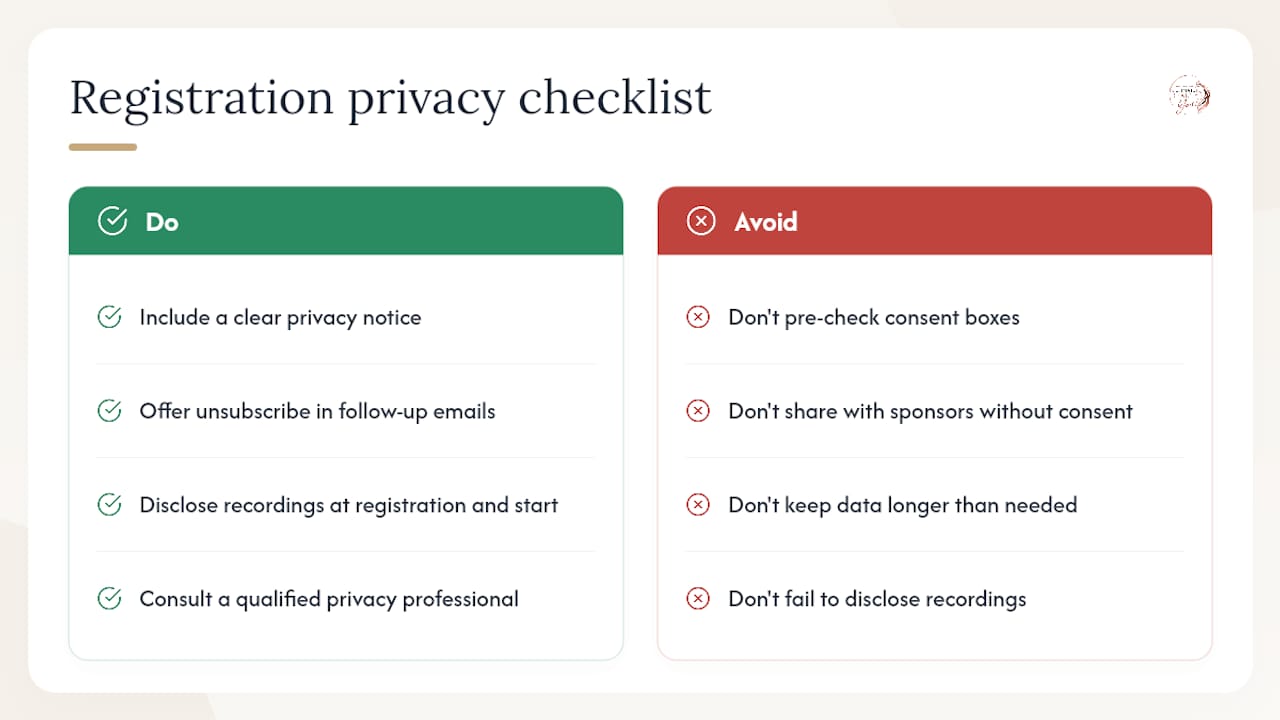
At minimum, your registration page must include a clear privacy notice stating what data you collect, how you use it, and who you share it with. Do not pre-check consent boxes. Provide an unsubscribe mechanism in every follow-up email. If you record the session, disclose that fact to attendees at the start of the event and in the registration confirmation.
Store registration data only as long as you need it for the stated purpose. If you share attendee data with sponsors or partners, disclose that in your privacy notice and obtain explicit consent where required. Consult a qualified privacy professional to confirm your registration flow and data handling practices meet the requirements for your specific audience and jurisdiction.
Webinars build community when you treat them as a program, not an event
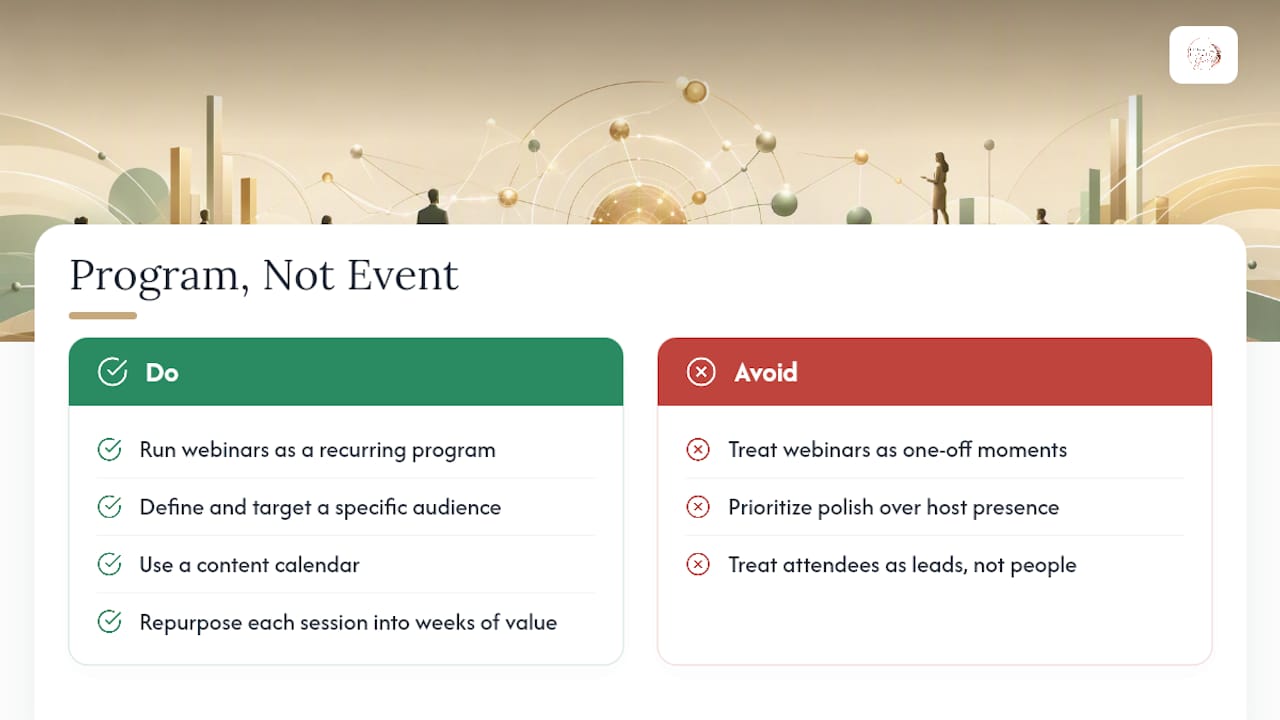
The teams that get the most from webinars are not the ones with the biggest budgets or the fanciest studios. They are the ones who run webinars as a recurring program with a defined audience, a content calendar, and a repurposing system that turns each session into weeks of value.
A single webinar is a moment. A webinar series is a relationship. When you show up consistently, your audience starts to expect you, share your events, bring colleagues, and become the kind of community that grows itself.
At Theultimatebeauty-you, we see this pattern play out in the expert sessions we host for our women-centered community. The sessions that generate the most engagement are not the ones with the most polished production. They are the ones where the host is genuinely present, the topic is specific, and the follow-up treats attendees like people, not leads. That is the model worth building toward: a community-centered event program where every webinar adds to something larger than itself.
If you are building your first series or refining an existing one, the planning framework and checklists in this guide give you the operating system. The rest is showing up and doing the work.
Ready to host expert sessions on a platform built for community?
Theultimatebeauty-you connects experts, brands, and a growing community of women who are ready to learn, grow, and become. If you are an expert, educator, or brand looking to host sessions that reach an engaged, women-centered audience, our platform is built for exactly that.
Explore expert and partner opportunities and bring your webinar programming to a community that shows up.
Sources
- The Complete Guide to Webinar Production in 2026 | Content RevOps
- Webinar Best Practices - How to Produce an Engaging Webinar
- How to Host a Webinar: Step-by-Step Guide for 2026
- How to Host a Webinar in 2026 (7-Step Setup Guide) | IP
- How to Host a Webinar: Complete Step-by-Step Guide | Vida AI Agent OS